خب وسایل لازم برای ساخت این پروژه :
1- پایتون
2-کتابخانه tkinter
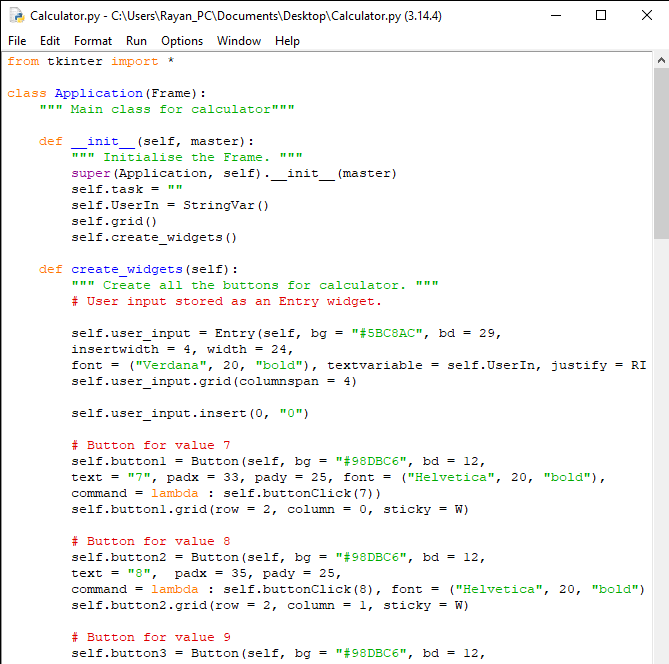
خب حالا کد زیر را داخل پایتون وارد میکنیم .
from tkinter import * class Application(Frame): """ Main class for calculator""" def __init__(self, master): """ Initialise the Frame. """ super(Application, self).__init__(master) self.task = "" self.UserIn = StringVar() self.grid() self.create_widgets() def create_widgets(self): """ Create all the buttons for calculator. """ # User input stored as an Entry widget. self.user_input = Entry(self, bg = "#5BC8AC", bd = 29, insertwidth = 4, width = 24, font = ("Verdana", 20, "bold"), textvariable = self.UserIn, justify = RIGHT) self.user_input.grid(columnspan = 4) self.user_input.insert(0, "0") # Button for value 7 self.button1 = Button(self, bg = "#98DBC6", bd = 12, text = "7", padx = 33, pady = 25, font = ("Helvetica", 20, "bold"), command = lambda : self.buttonClick(7)) self.button1.grid(row = 2, column = 0, sticky = W) # Button for value 8 self.button2 = Button(self, bg = "#98DBC6", bd = 12, text = "8", padx = 35, pady = 25, command = lambda : self.buttonClick(8), font = ("Helvetica", 20, "bold")) self.button2.grid(row = 2, column = 1, sticky = W) # Button for value 9 self.button3 = Button(self, bg = "#98DBC6", bd = 12, text = "9", padx = 33, pady = 25, command = lambda : self.buttonClick(9), font = ("Helvetica", 20, "bold")) self.button3.grid(row = 2, column = 2, sticky = W) # Button for value 4 self.button4 = Button(self, bg = "#98DBC6", bd = 12, text = "4", padx = 33, pady = 25, command = lambda : self.buttonClick(4), font = ("Helvetica", 20, "bold")) self.button4.grid(row = 3, column = 0, sticky = W) # Button for value 5 self.button5 = Button(self, bg = "#98DBC6", bd = 12, text = "5", padx = 35, pady = 25, command = lambda : self.buttonClick(5), font = ("Helvetica", 20, "bold")) self.button5.grid(row = 3, column = 1, sticky = W) # Button for value 6 self.button6 = Button(self, bg = "#98DBC6", bd = 12, text = "6", padx = 33, pady = 25, command = lambda : self.buttonClick(6), font = ("Helvetica", 20, "bold")) self.button6.grid(row = 3, column = 2, sticky = W) # Button for value 1 self.button7 = Button(self, bg = "#98DBC6", bd = 12, text = "1", padx = 33, pady = 25, command = lambda : self.buttonClick(1), font = ("Helvetica", 20, "bold")) self.button7.grid(row = 4, column = 0, sticky = W) # Button for value 2 self.button8 = Button(self, bg = "#98DBC6", bd = 12, text = "2", padx = 35, pady = 25, command = lambda : self.buttonClick(2), font = ("Helvetica", 20, "bold")) self.button8.grid(row = 4, column = 1, sticky = W) # Button for value 3 self.button9 = Button(self, bg = "#98DBC6", bd = 12, text = "3", padx = 33, pady = 25, command = lambda : self.buttonClick(3), font = ("Helvetica", 20, "bold")) self.button9.grid(row = 4, column = 2, sticky = W) # Button for value 0 self.button9 = Button(self, bg = "#98DBC6", bd = 12, text = "0", padx = 33, pady = 25, command = lambda : self.buttonClick(0), font = ("Helvetica", 20, "bold")) self.button9.grid(row = 5, column = 0, sticky = W) # Operator buttons # Addition button self.Addbutton = Button(self, bg = "#98DBC6", bd = 12, text = "+", padx = 36, pady = 25, command = lambda : self.buttonClick("+"), font = ("Helvetica", 20, "bold")) self.Addbutton.grid(row = 2, column = 3, sticky = W) # Subtraction button self.Subbutton = Button(self, bg = "#98DBC6", bd = 12, text = "-", padx = 39, pady = 25, command = lambda : self.buttonClick("-"), font = ("Helvetica", 20, "bold")) self.Subbutton.grid(row = 3, column = 3, sticky = W) # Multiplication button self.Multbutton = Button(self, bg = "#98DBC6", bd = 12, text = "*", padx = 38, pady = 25, command = lambda : self.buttonClick("*"), font = ("Helvetica", 20, "bold")) self.Multbutton.grid(row = 4, column = 3, sticky = W) # Division button self.Divbutton = Button(self, bg = "#98DBC6", bd = 12, text = "/", padx = 39, pady = 25, command = lambda : self.buttonClick("/"), font = ("Helvetica", 20, "bold")) self.Divbutton.grid(row = 5, column = 3, sticky = W) # Equal button self.Equalbutton = Button(self, bg = "#E6D72A", bd = 12, text = "=", padx = 100, pady = 25, command = self.CalculateTask, font = ("Helvetica", 20, "bold")) self.Equalbutton.grid(row = 5, column = 1, sticky = W, columnspan = 2) # Clear Button self.Clearbutton = Button(self, bg = "#E6D72A", bd = 12, text = "AC", font = ("Helvetica", 20, "bold"), width = 28, padx = 7, command = self.ClearDisplay) self.Clearbutton.grid(row = 1, columnspan = 4, sticky = W) def buttonClick(self, number): self.task = str(self.task) + str(number) self.UserIn.set(self.task) def CalculateTask(self): self.data = self.user_input.get() try: self.answer = eval(self.data) self.displayText(self.answer) self.task = self.answer except SyntaxError as e: self.displayText("Invalid Syntax!") self.task = "" def displayText(self, value): self.user_input.delete(0, END) self.user_input.insert(0, value) def ClearDisplay(self): self.task = "" self.user_input.delete(0, END) self.user_input.insert(0, "0") calculator = Tk() calculator.title("Calculator") app = Application(calculator) # Make window fixed (cannot be resized) calculator.resizable(width = False, height = False) calculator.mainloop()
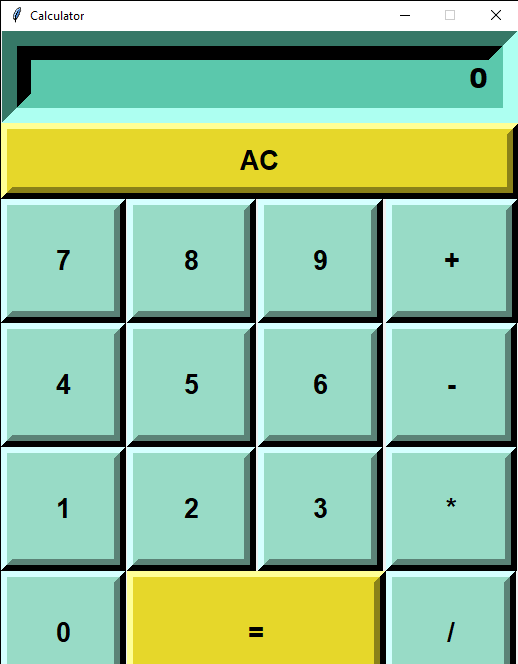
وقتی کد را وارد کنید برنامه زیر را میبینید .
برای دانلود همین پایتون یا فایل تبدیل شده به برنامه روی نوشته لینک بزنید و 15ثانیه صبر کنید و فایل را دریافت کنید .
خب حالا اینم از ماشین حساب اگر ایده یا پروژه ای را دارید در نظرات بنویسید .