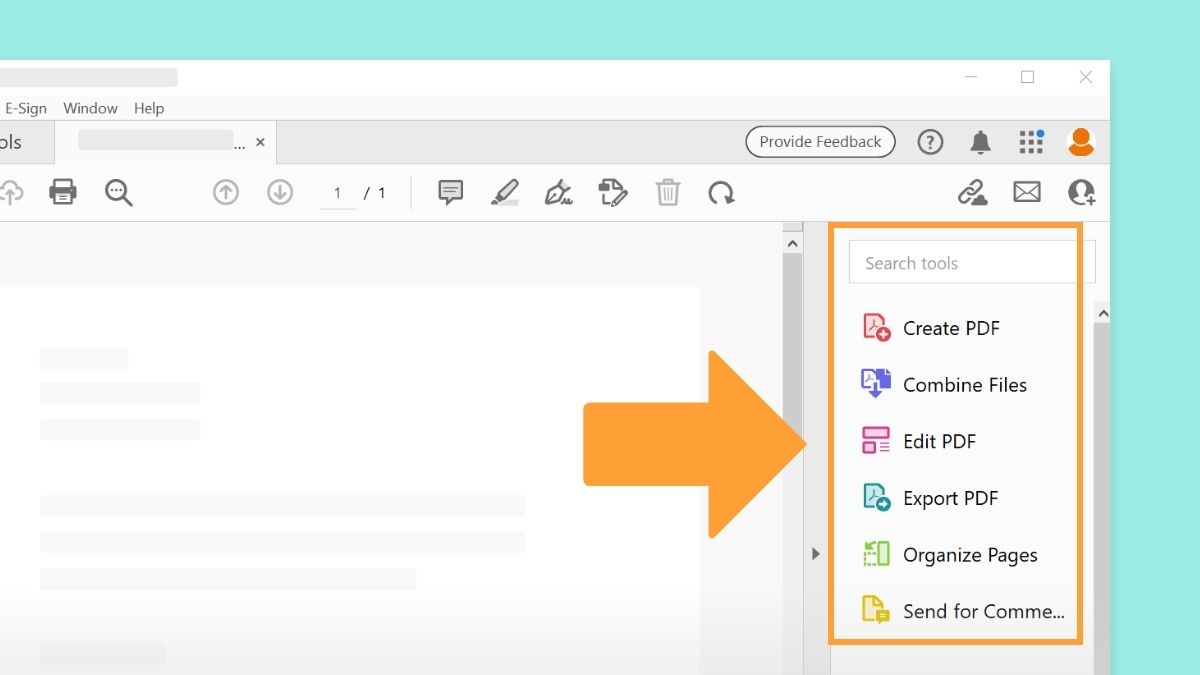
Creating a fillable PDF can seem like a daunting task, but with the right tools and a step-by-step approach, you can streamline your document workflow and enhance user interaction. In this tutorial, we will explore various methods to create a fillable PDF, catering to different preferences and skill levels.
1.1 What is a Fillable PDF?
A fillable PDF is a digital document that allows users to input information directly into designated fields. Unlike static PDFs, fillable ones transform traditional paperwork into interactive forms.
1.2 Importance of Fillable PDFs
Fillable PDFs simplify data collection, reduce manual errors, and provide a professional touch to your documents. Whether it's a registration form or a survey, creating a fillable PDF enhances user experience.
2. Choosing the Right Tool
2.1 Adobe Acrobat
Adobe Acrobat is a versatile tool widely used for PDF manipulation. Its advanced features make it an ideal choice for complex forms and professional documents.
2.2 Online Fillable PDF Editors
Online editors offer convenience without the need for software installation. They are user-friendly and suitable for those who prefer a quick solution.
2.3 Microsoft Word
For users familiar with Microsoft Word, utilizing its form control features provides a straightforward way to create fillable PDFs.
3. Preparing Your Document
3.1 Document Content and Layout
Before adding form fields, ensure your document's content and layout are well-organized. A clear structure makes it easier to identify where form fields should be placed.
3.2 Identifying Form Fields
Determine the type of information you want to collect. Common form fields include text boxes, checkboxes, and dropdown menus.
3.3 Adding Headers and Footers
Enhance the professional appearance of your fillable PDF by adding headers and footers with relevant information.
4. Using Adobe Acrobat
4.1 Opening Your Document
Open your document in Adobe Acrobat. If your document doesn't already exist in PDF format, save it as a PDF before proceeding.
4.2 Adding Form Fields
Navigate to the "Prepare Form" tool and select the form fields you need. Place them strategically within your document.
4.3 Customizing Field Properties
Adjust field properties such as font size, color, and alignment to ensure consistency and readability.
5. Online Fillable PDF Editors
5.1 Uploading Your Document
Choose a reputable online editor, upload your document, and follow the platform's instructions for adding fillable form fields.
5.2 Drag-and-Drop Form Fields
Most online editors offer a user-friendly interface with drag-and-drop functionality, making it easy to add and arrange form fields.
5.3 Testing the Fillable Elements
Before finalizing, thoroughly test the fillable elements to ensure a seamless user experience.
6. Microsoft Word Method
6.1 Enabling Developer Tab
In Microsoft Word, enable the Developer tab in the ribbon through the program's settings.
6.2 Inserting Form Controls
Use the Developer tab to insert various form controls, such as text boxes and checkboxes, into your document.
6.3 Protecting Your Document
Once your form is complete, protect the document to prevent unintended changes to the form fields.
7. Ensuring Accessibility
7.1 Adding Alt Text to Form Elements
Enhance accessibility by adding descriptive alt text to form elements, aiding users with visual impairments.
7.2 Testing for Accessibility
Run accessibility tests to ensure your fillable PDF is user-friendly for individuals with disabilities.
7.3 Optimizing for Screen Readers
Consider the experience of users relying on screen readers, and optimize your PDF for compatibility.
8. Designing an Attractive Form
8.1 Choosing Fonts and Colors
Select fonts and colors that align with your brand and enhance the visual appeal of your fillable PDF.
8.2 Adding Images and Logos
Incorporate images and logos to personalize your form and create a cohesive brand identity.
8.3 Considering User Experience
Prioritize a smooth user experience by arranging form fields logically and minimizing unnecessary elements.
9. Testing Your Fillable PDF
9.1 Preview Mode
Before sharing your fillable PDF, enter preview mode to see how users will interact with the form